Overview
This release is all about improving how creators interact with learners, simplifying access, and giving you more control over your courses.
From lesson discussions and real-time notifications to smarter access control and clearer visibility, these updates are designed to make your workflow smoother and your learning experience more engaging.
Below are the key features included in this release, what’s new, why they matter, and how you can start using them right away.
1) Lesson Discussions & Smart Notifications
What’s New
Creators and learners can now comment directly on lessons, opening up real conversations within your course.
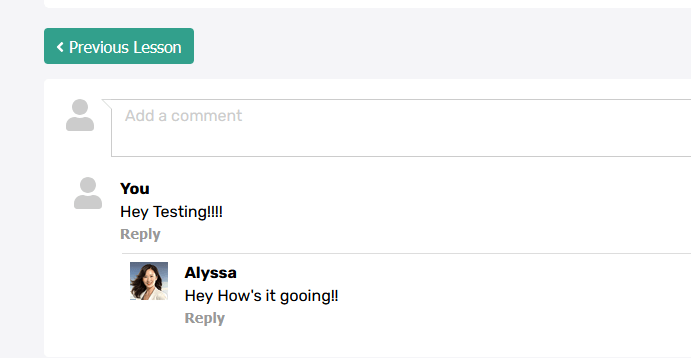
Alongside this, a full notification system has been introduced:
- In-app notifications (top-right notification icon)
- Email notifications for comments and replies
Why It Matters
- Encourage engagement directly inside your course
- Allow learners to ask questions in context
- Stay informed instantly when discussions happen
This turns your course from a static experience into a more interactive learning environment.
How to Use It
Go to Settings → General → Comments, enable comments, and optionally turn on moderation.
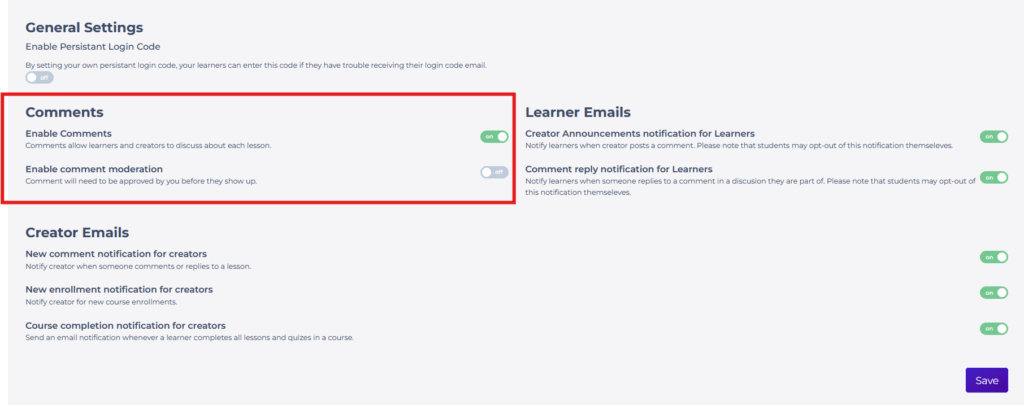
Once enabled:
- Learners and creators can comment on lessons
- Notifications will appear in-app and via email based on activity
How to Test Quickly
- Enable comments in settings
- Open a lesson as a learner and leave a comment
- Confirm notifications appear in the notification icon and via email
2) Free Preview Lessons (Let Learners Try Before They Enroll)
What’s New
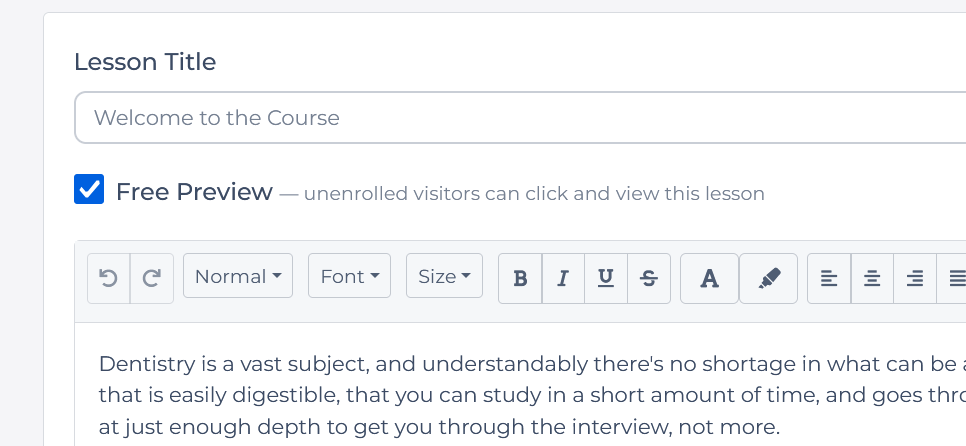
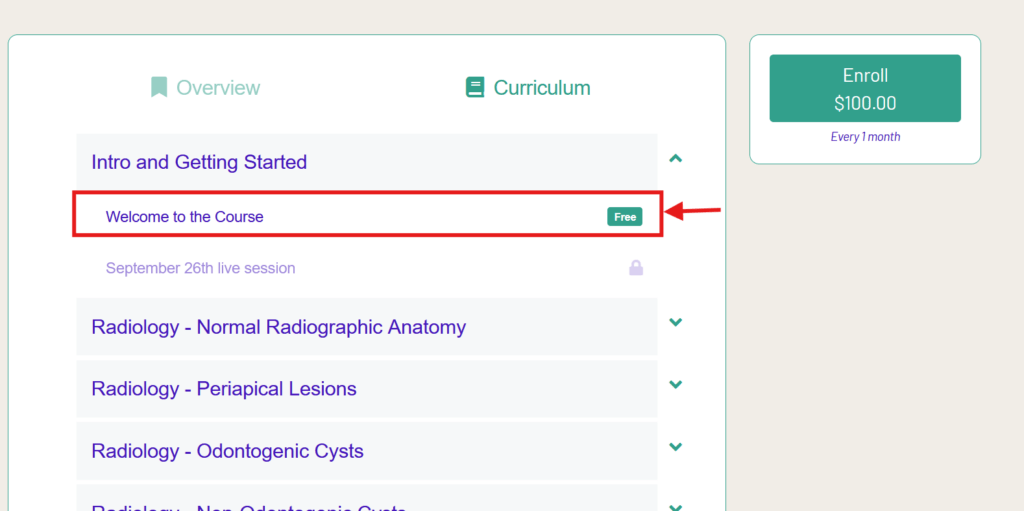
Creators can now mark any lesson as a Free Preview, allowing non-enrolled visitors to access selected lessons before purchasing or enrolling.
On the course overview page:
- Free lessons appear as clickable links with a “Free” badge
- All other lessons remain locked and greyed out
Why It Matters
- Let potential learners experience your content before committing
- Build trust and increase conversions
- Showcase your teaching style and course quality upfront
This is a powerful way to turn visitors into enrolled learners.
How to Use It
- Open any lesson in the course editor
- Enable the “Free Preview” option
- Save and ensure your course is published
What Happens for Visitors
- They can access only the free lesson
- All other lessons and quizzes remain locked
- Navigation is restricted to prevent skipping ahead
How to Test Quickly
- Mark a lesson as Free Preview
- Open the course overview while logged out
- Click the free lesson and confirm:
- It loads correctly
- Other lessons remain locked
- Only the free lesson is accessible
3) Faster, Simpler Login Experience (Magic Links)
What’s New
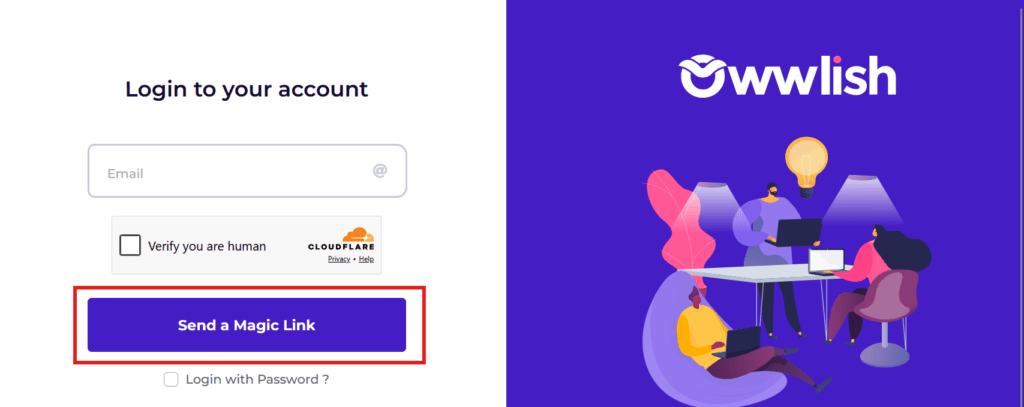
The registration experience has been simplified by removing the default password field, encouraging the use of secure magic links.
Users can still choose to use a password if needed, but the default flow is now faster and more seamless.
Why It Matters
- Reduce friction during signup and login
- Eliminate forgotten password issues
- Provide a smoother onboarding experience for learners
How to Use It
When signing up:
- Users will receive a magic link to access their account
- The password option is still available if manually selected
How to Test Quickly
- Register a new user
- Confirm no password field appears by default
- Use the magic link to log in successfully
4) Full Control Over Learner Access
What’s New
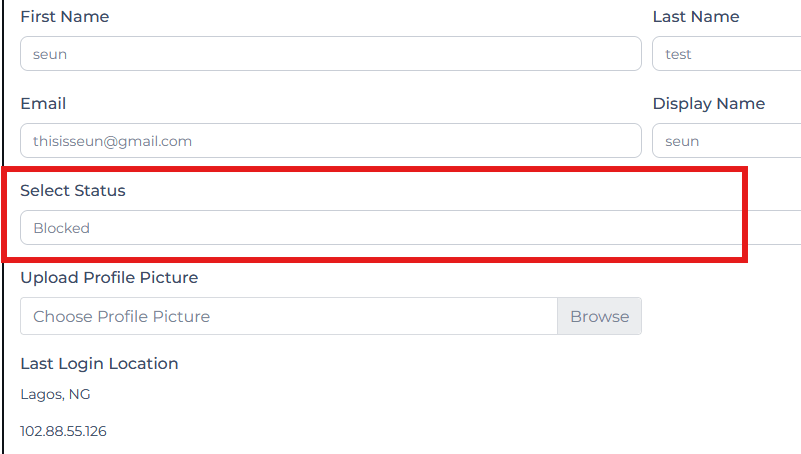
The “Blocked” feature now works exactly as intended.
When a learner is marked as Blocked:
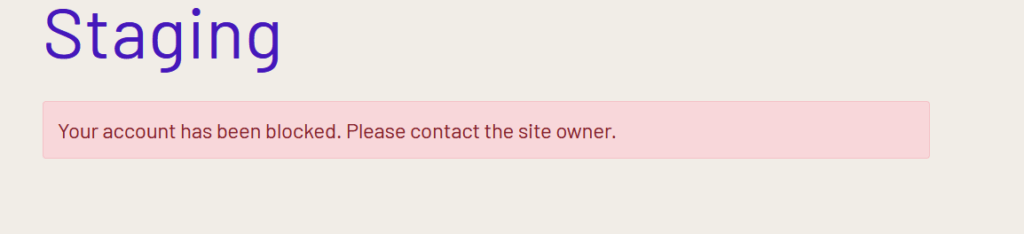
- They are immediately logged out
- They cannot log back in
- They lose access to all enrolled courses
Why It Matters
- Instantly restrict access when needed
- Maintain control over course participation
- Improve platform security and management
How to Use It
- Go to a learner’s profile
- Change their status to Blocked
How to Test Quickly
- Block a test learner
- Refresh or attempt login
- Confirm they are logged out and cannot regain access
5) Clear Visibility for Hidden Content
What’s New
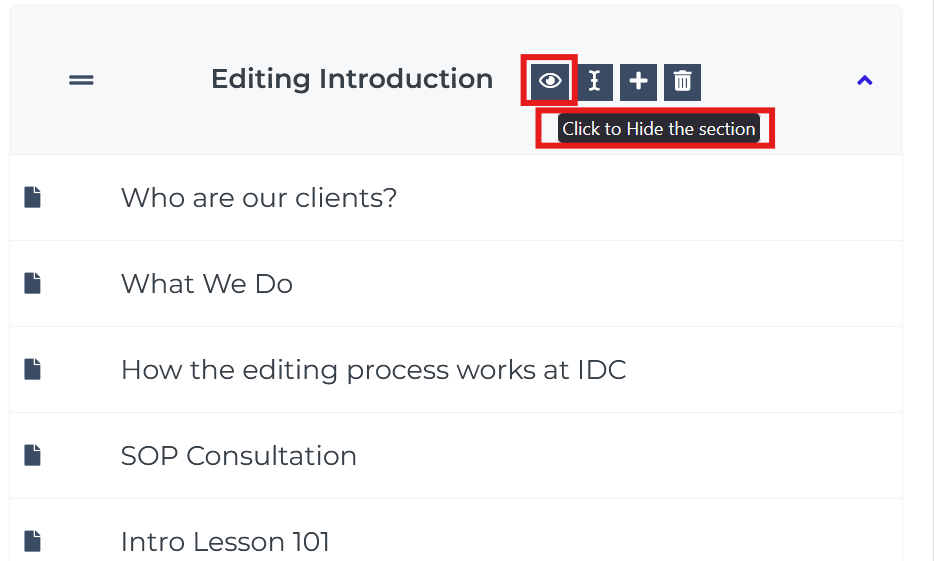
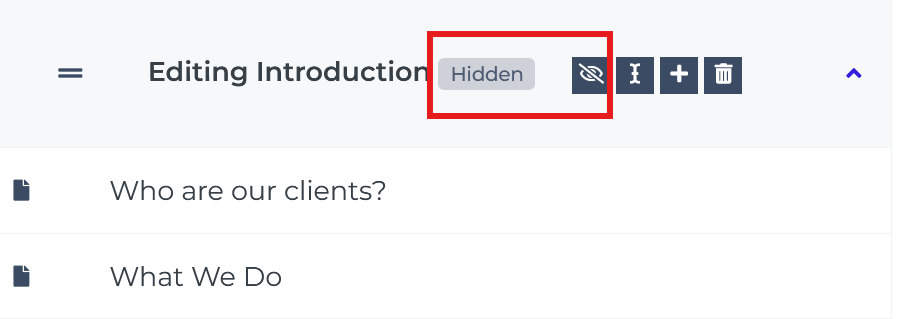
When a module or lesson is hidden, it now displays a “(Hidden)” label in grey text next to the title in the backend.
Why It Matters
- Prevent accidental hidden content
- Make course structure clearer at a glance
- Improve overall creator experience
How to Use It
- Hide a module or lesson using the visibility toggle
- The label will automatically appear next to the title
How to Test Quickly
- Hide a module
- Confirm the grey “(Hidden)” label appears in the course builder
6) Time-Limited Course Access (Expiration System)
What’s New
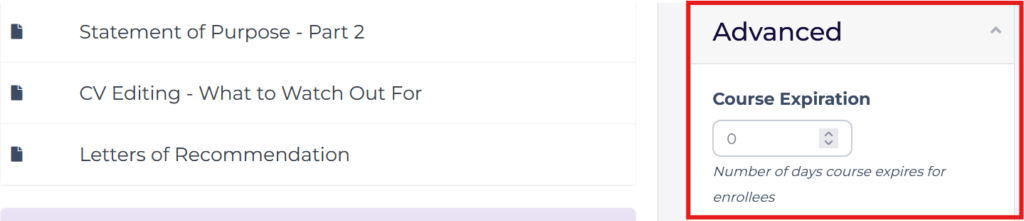
Creators can now set expiration periods for course access.
Why It Matters
- Offer time-based access to courses
- Create urgency and improve conversions
- Better control over course lifecycle and pricing models
How to Use It
- Set the number of expiration days in course settings
How to Test Quickly
- Set a short expiration window (e.g. 1 day)
- Enroll a test learner
- Confirm access is restricted after the expiration period
Final Thoughts
This release focuses on what matters most, engagement, simplicity, and control.
From enabling real conversations inside lessons to giving you better control over who accesses your content, Owwlish continues to evolve into a more powerful and creator-friendly platform.
As always, we’d love your feedback. Try out these features and let us know how they improve your workflow and your learners’ experience.